

Guide · 3 min read
Joining your virtual sessions
Join your virtual sessions from your phone, in one or two taps.
First time: set up once
Do this on a day before your first session.
Signing in, step by step (codes, passwords, a new phone)Step 1: Open studiomefitness.com/app and type your email
Use Safari on an iPhone or Chrome on Android. No password needed.
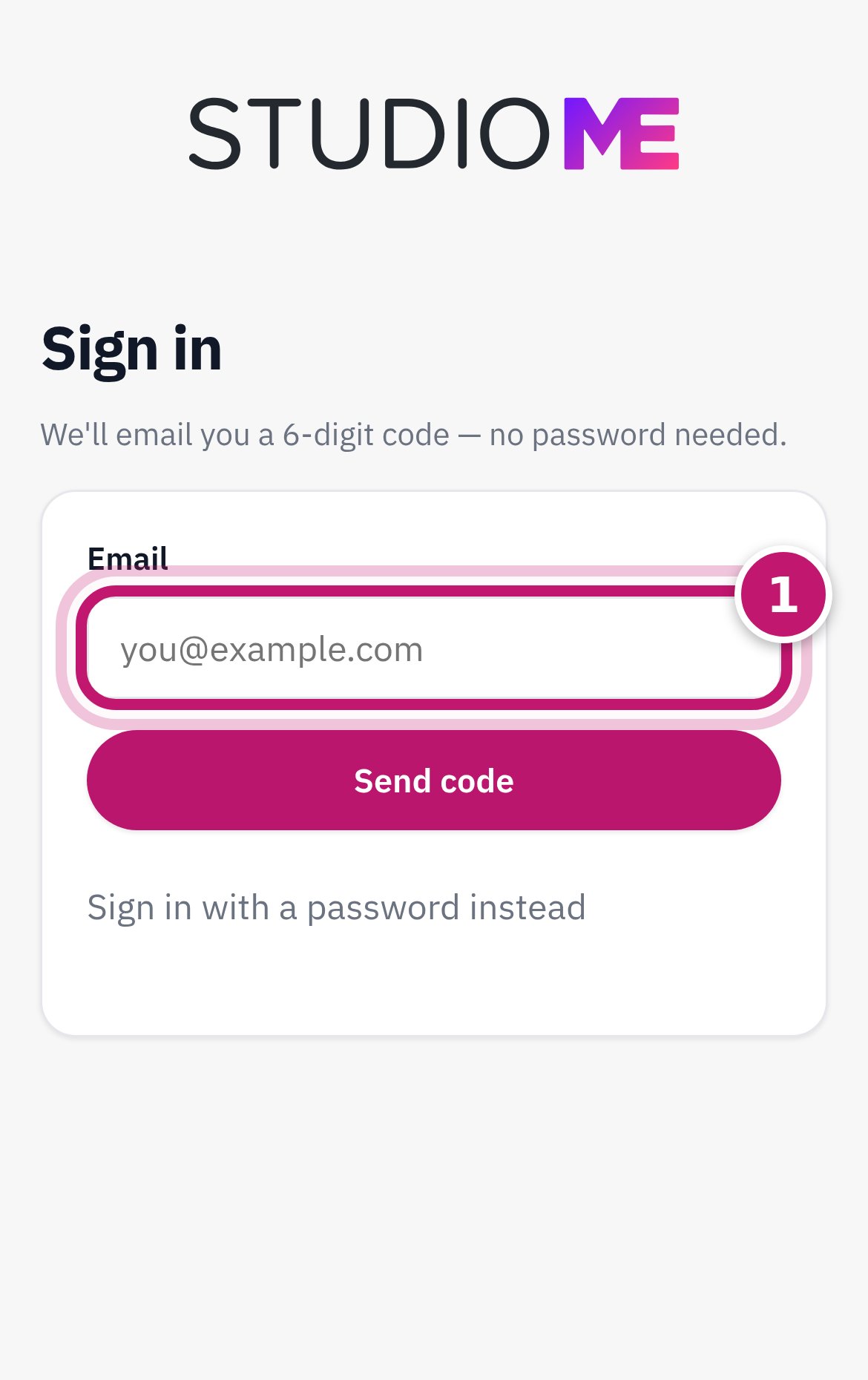
Step 2: Tap Send code
Studio ME emails you a 6-digit code.
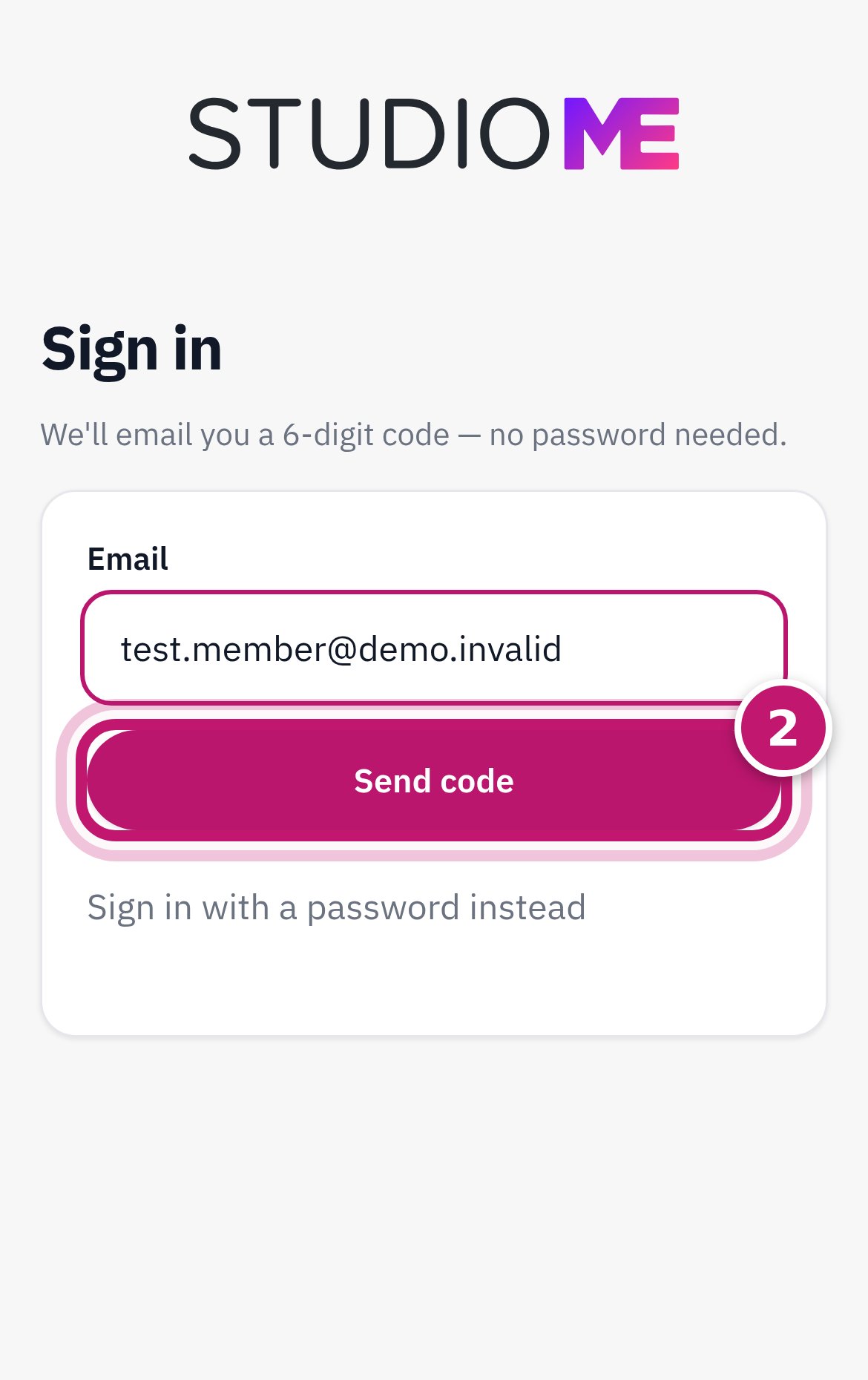
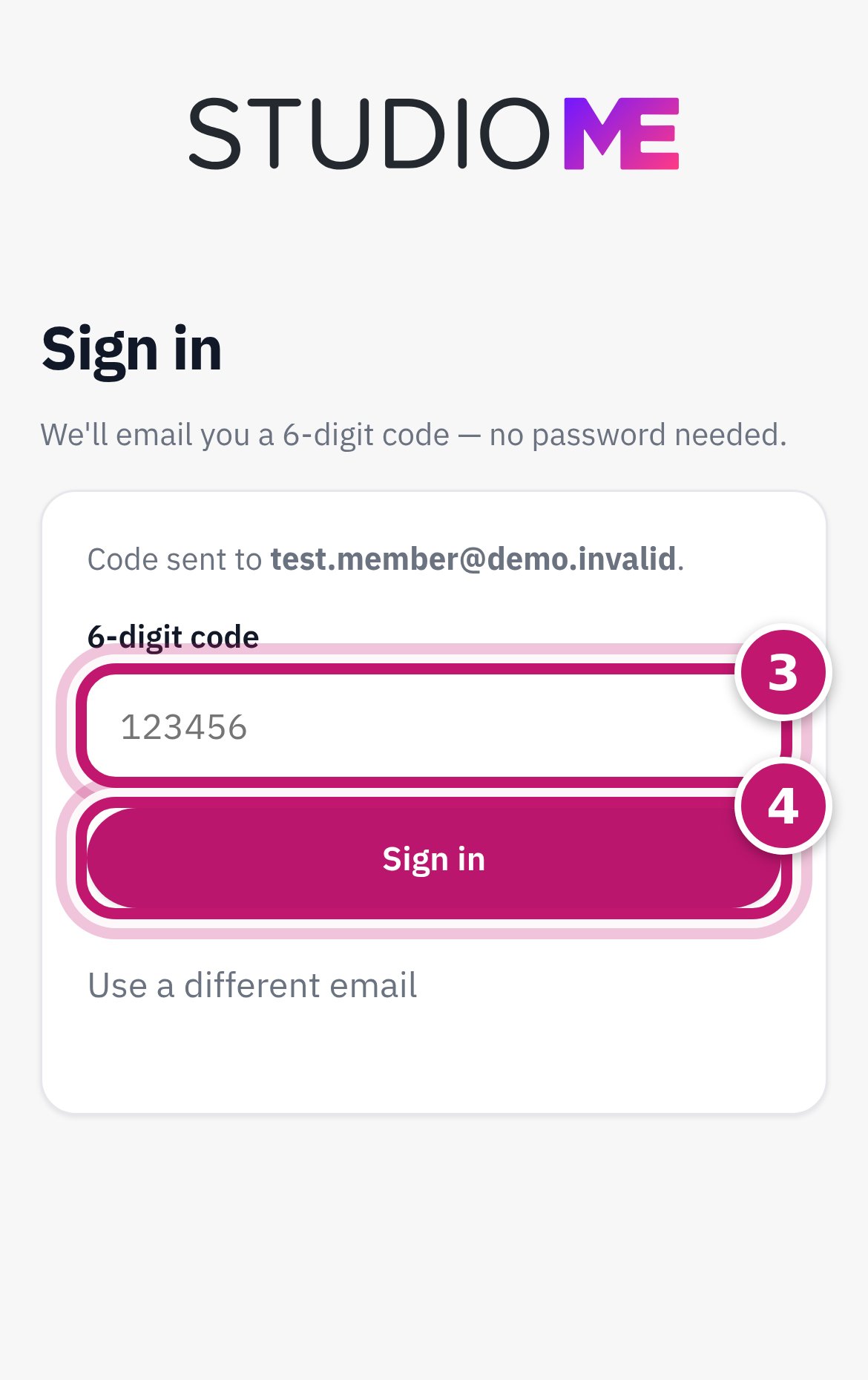
Step 3: Type the code, then tap Sign in
No email after 2 minutes? Check your junk or spam folder.
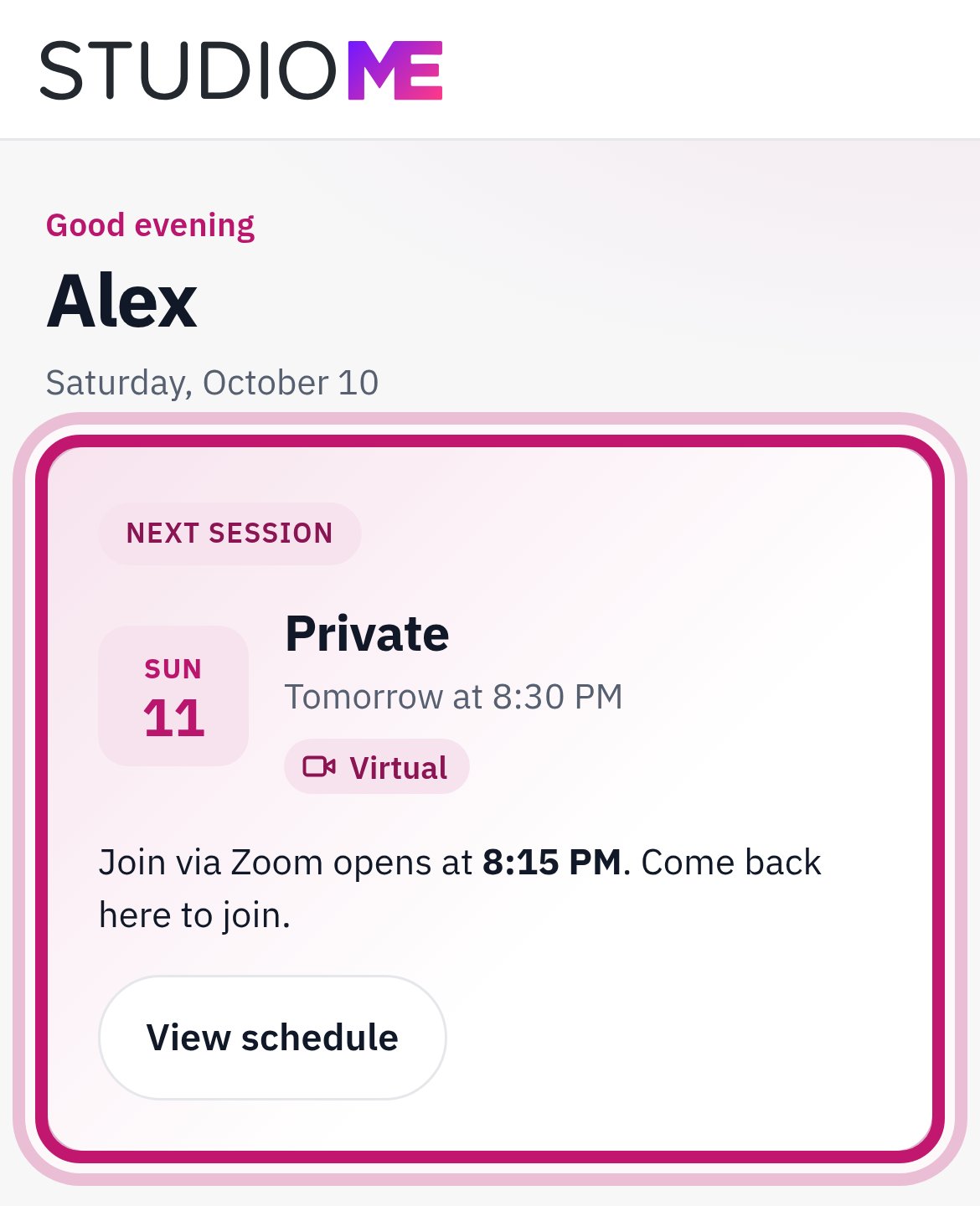
Step 4: Find your next session on the home page
The pink box shows its name, day and time, and when Join via Zoom opens.
Step 5: Turn on notifications, or tap the X
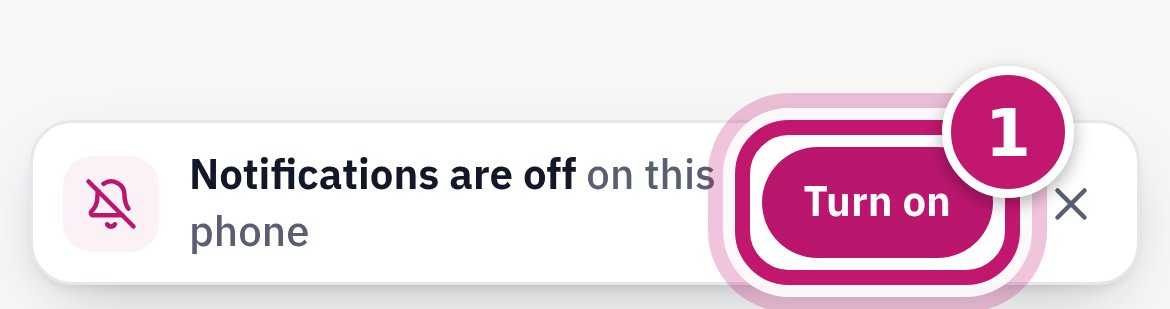
Optional. Open Studio ME from the Home Screen icon. A Notifications are off bar sits just above the tabs at the bottom of the home page: tap Turn on, then Allow. Tap the X to hide it for a week.
Step 6: Get the free Zoom app
In the App Store or Google Play, search Zoom Workplace. No Zoom account needed.
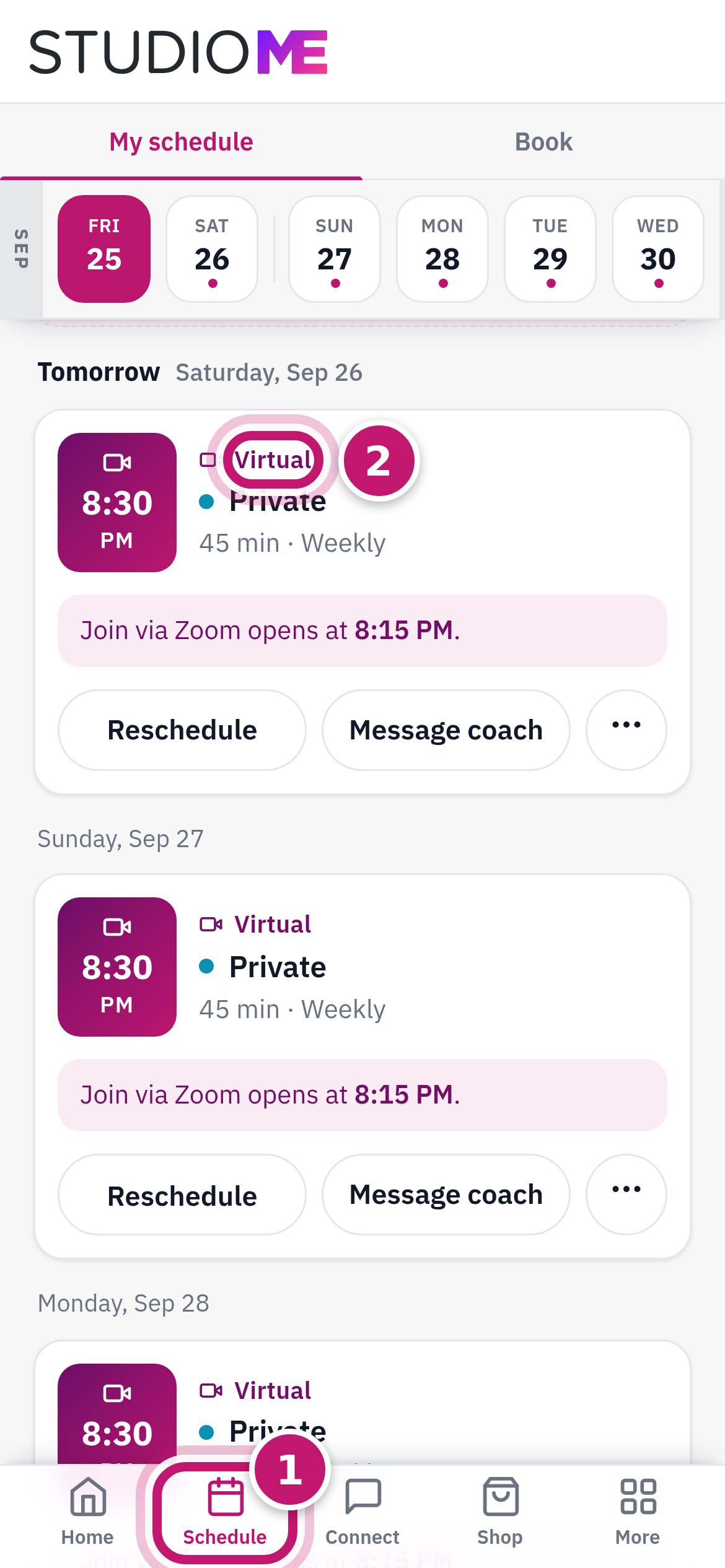
Step 7: Tap Schedule to see all your sessions
Each one says Virtual: you join from home on Zoom.
Every session
Join via Zoom opens shortly before your session (Studio ME sets how early) and stays until it ends.
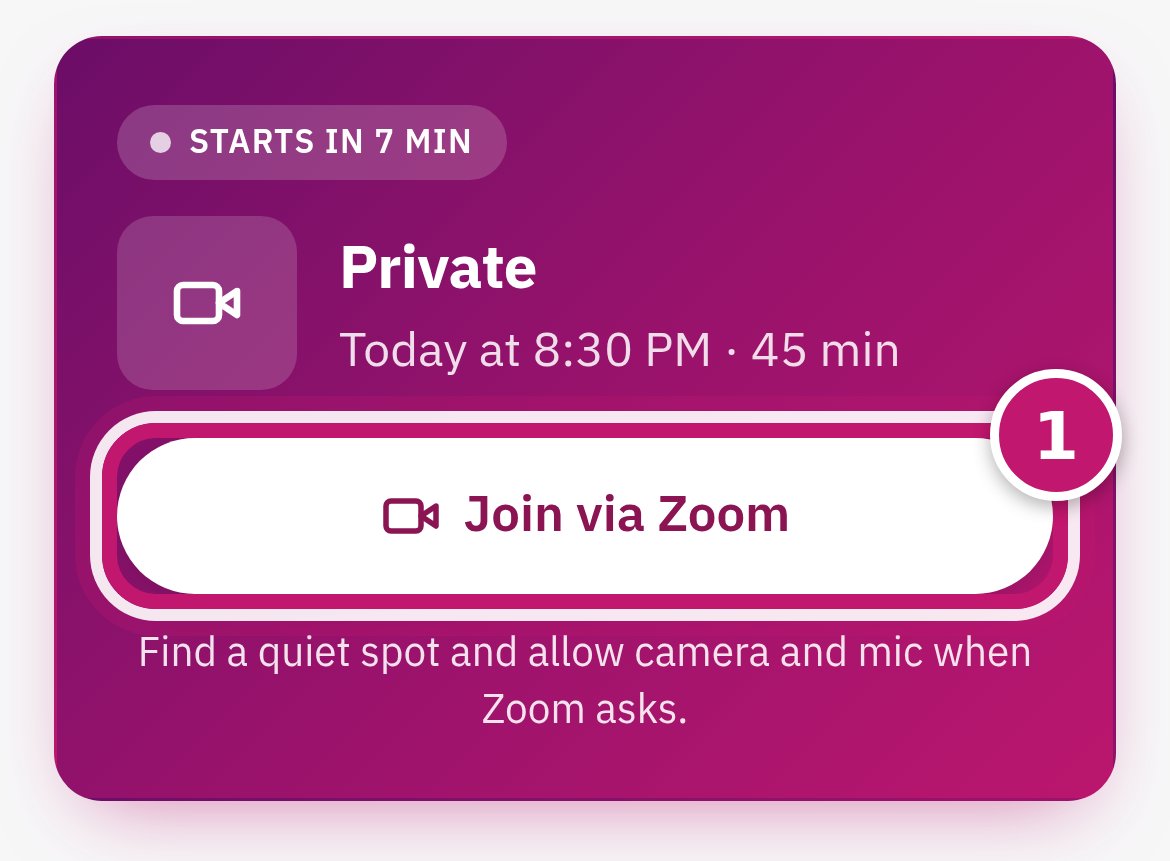
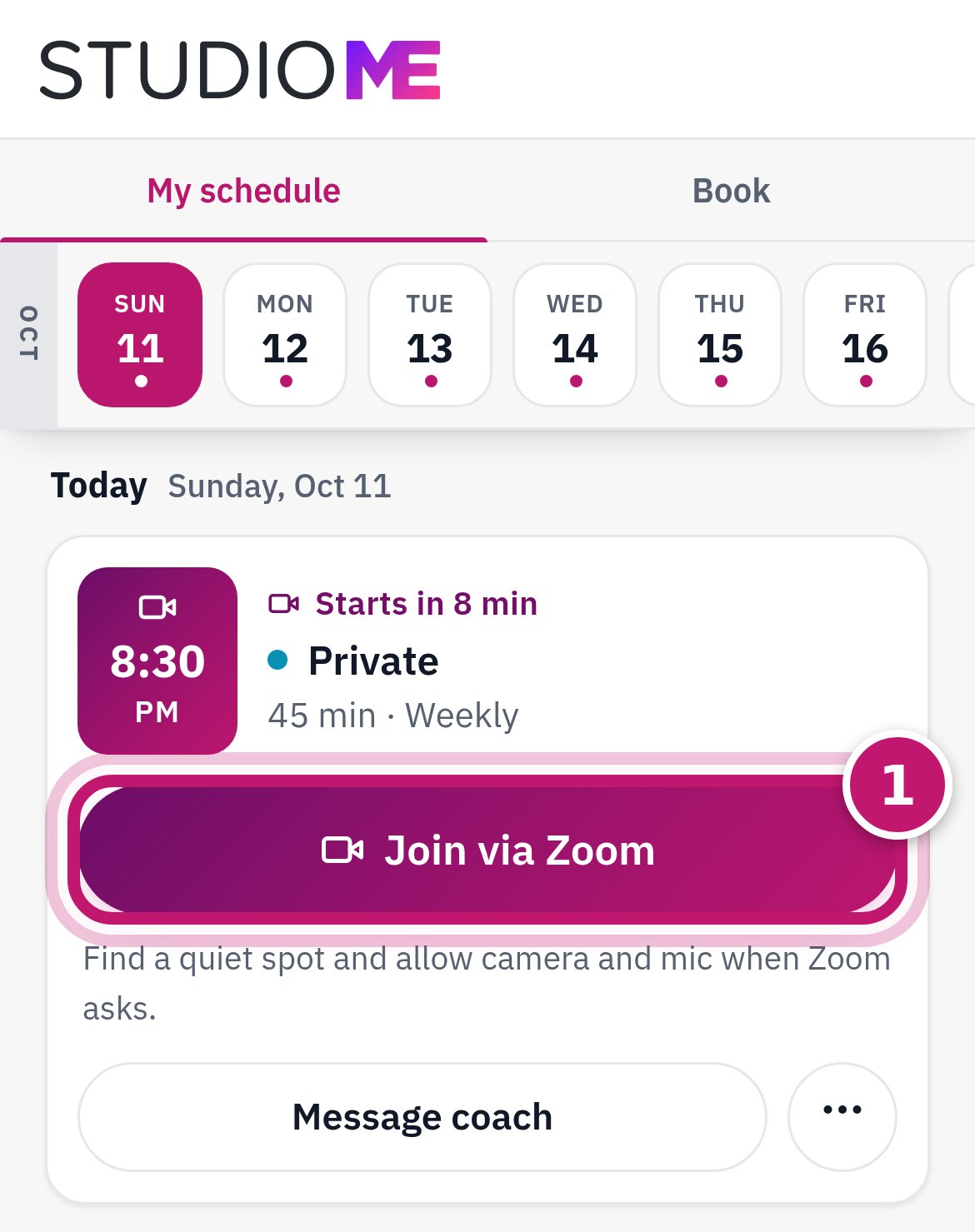
Step 1: Open Studio ME and tap Join via Zoom
It's on the home page and on that day's session in My schedule. Either one works.
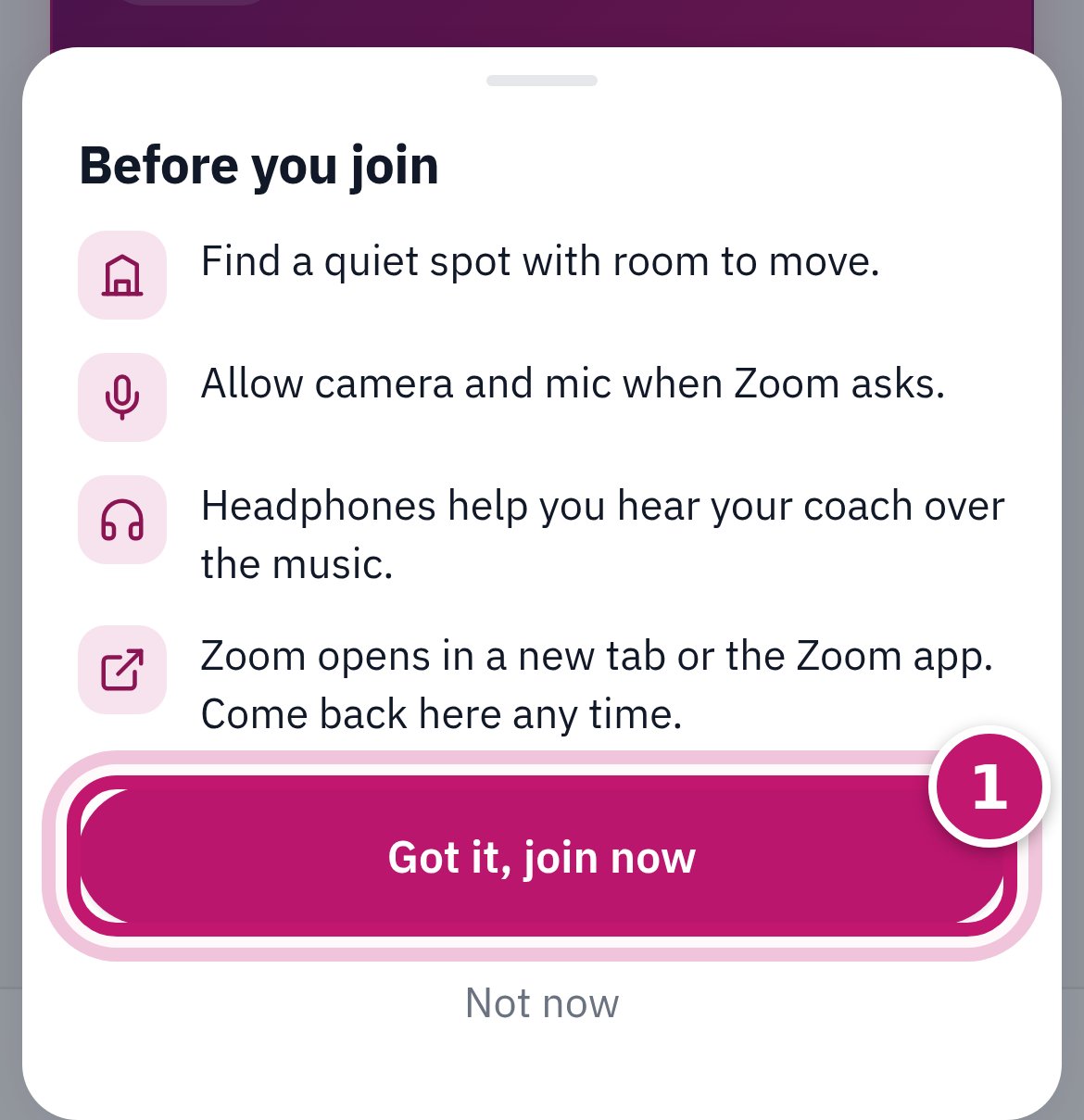
Step 2: First time: read the tips, tap Got it, join now
After the first time, Join via Zoom goes straight to Zoom.
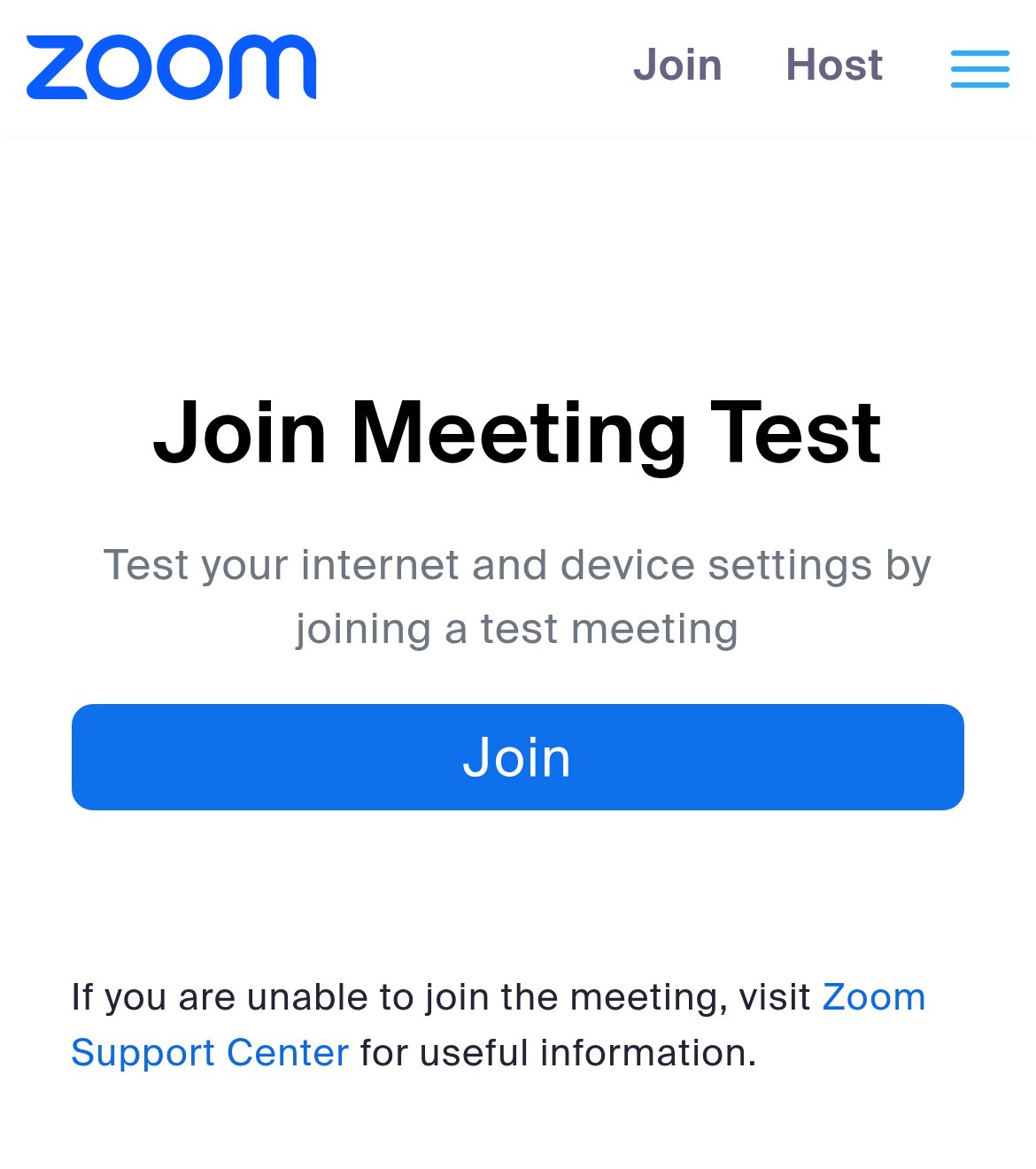
Step 3: Zoom opens: tap Open or Join
When Zoom asks to use your camera and microphone, tap Allow.
Step 4: When you're done, tap Leave in Zoom
Tap the screen once to show Zoom's buttons. Leave is in red.
Change or cancel a session
Depending on the session, My schedule shows some of these buttons. You don't need them to join.
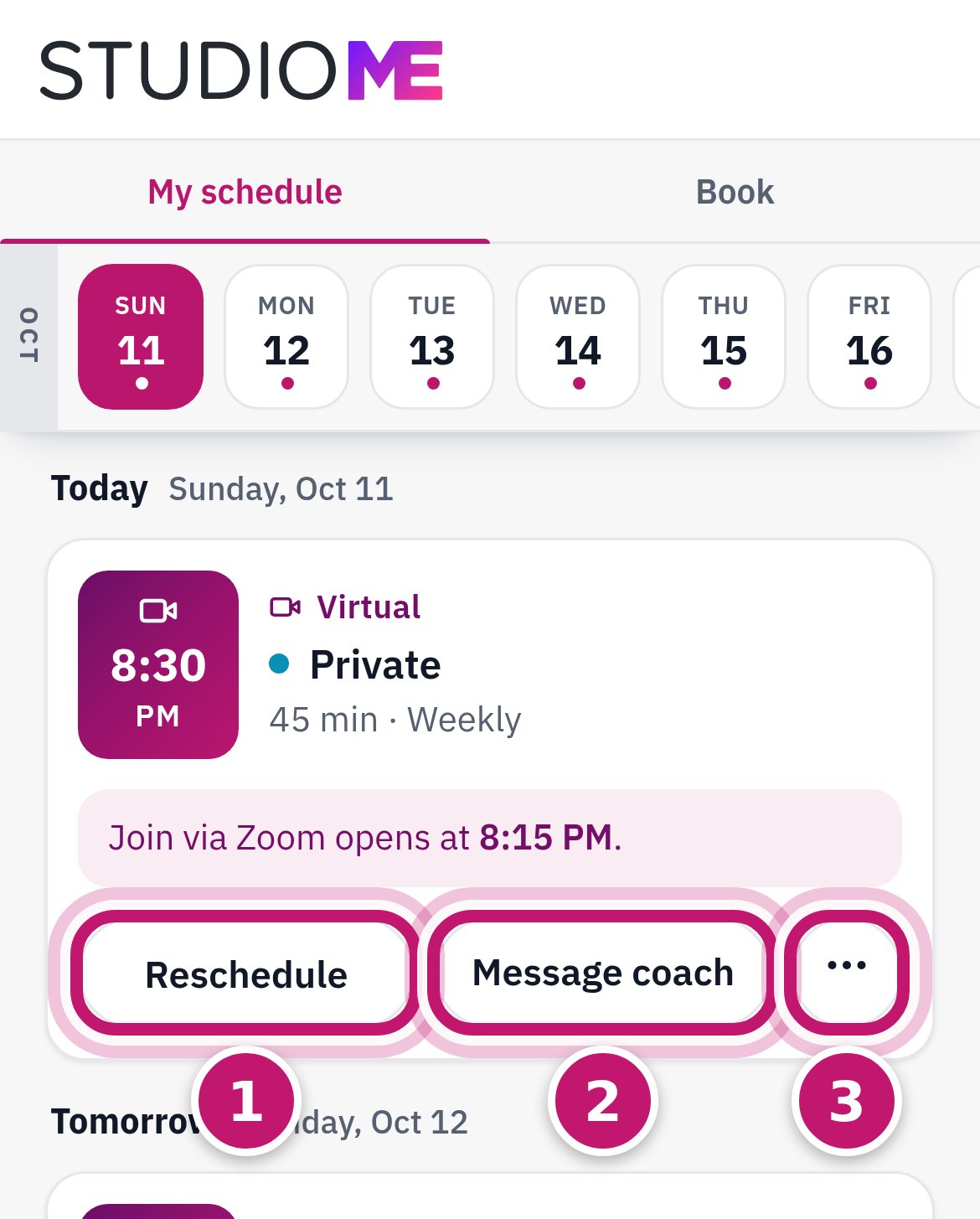
Step 1: Find the buttons under a session
1 Reschedule, 2 Message coach, 3 the three dots for more.
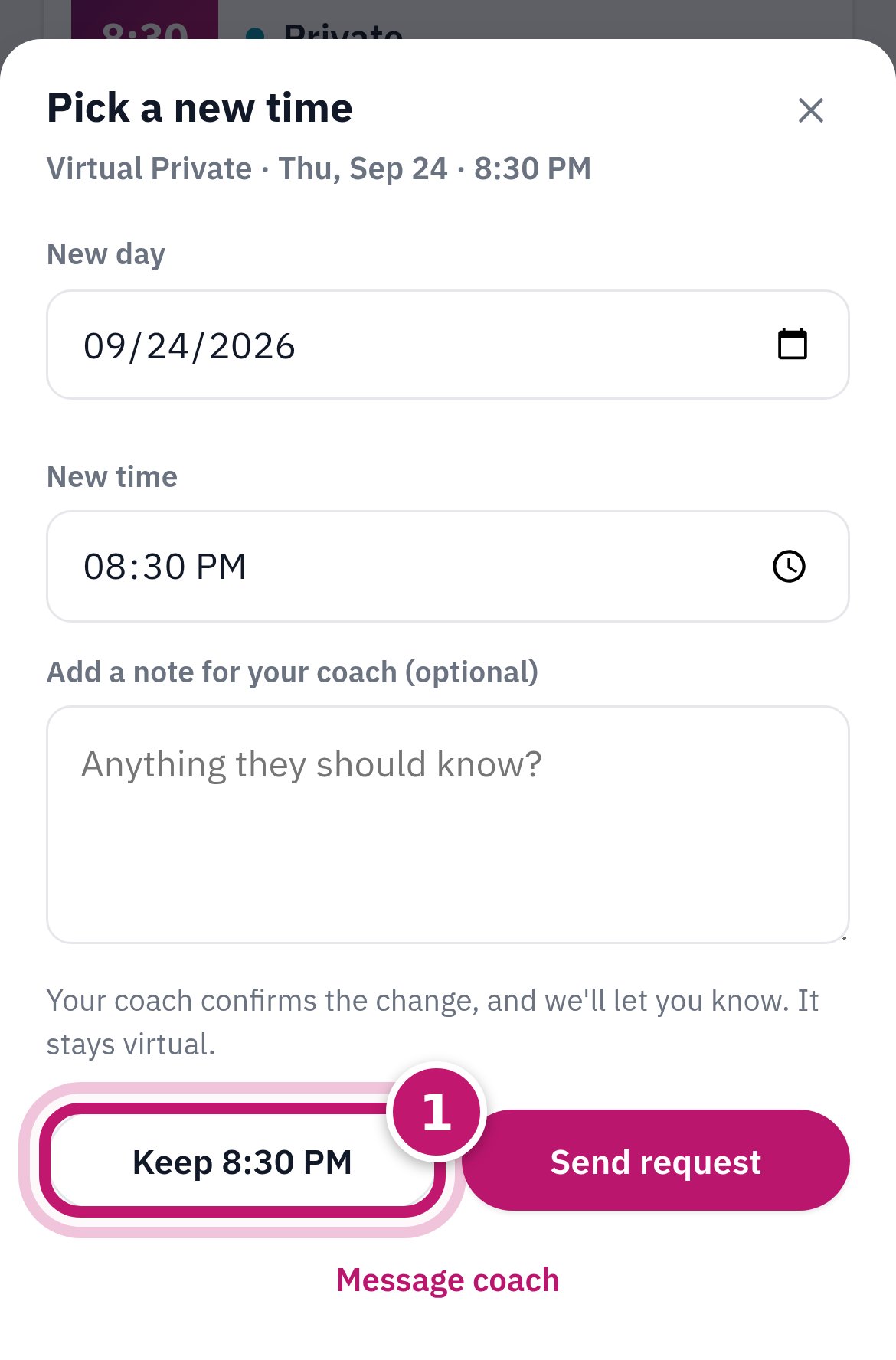
Step 2: Tap Reschedule to pick a new time
You'll see times your coach has open, or you can pick a day and time. Then tap Request and the time (or Send request when you pick your own day and time). To close without sending, tap Keep and your time, or the X.
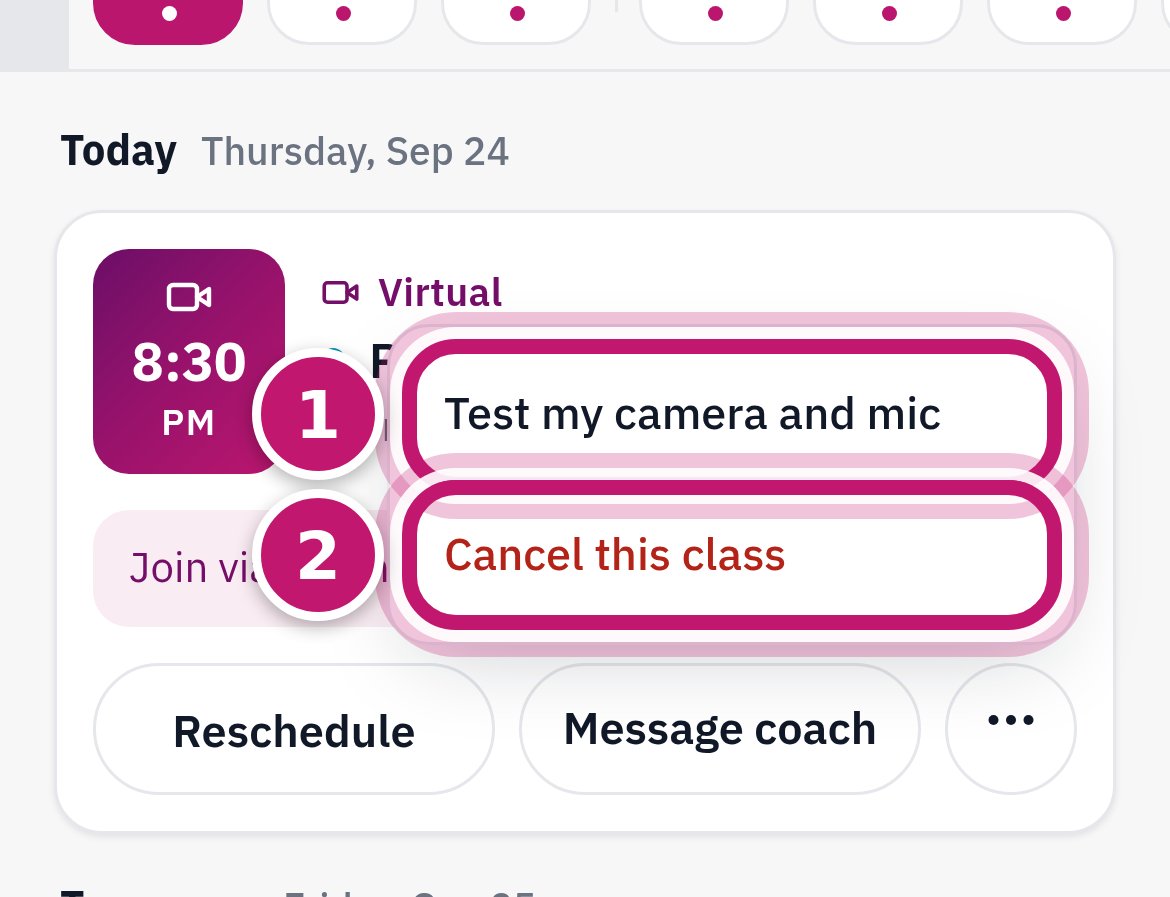
Step 3: Tap the three dots for more
1 Test my camera and mic, 2 Cancel this session.
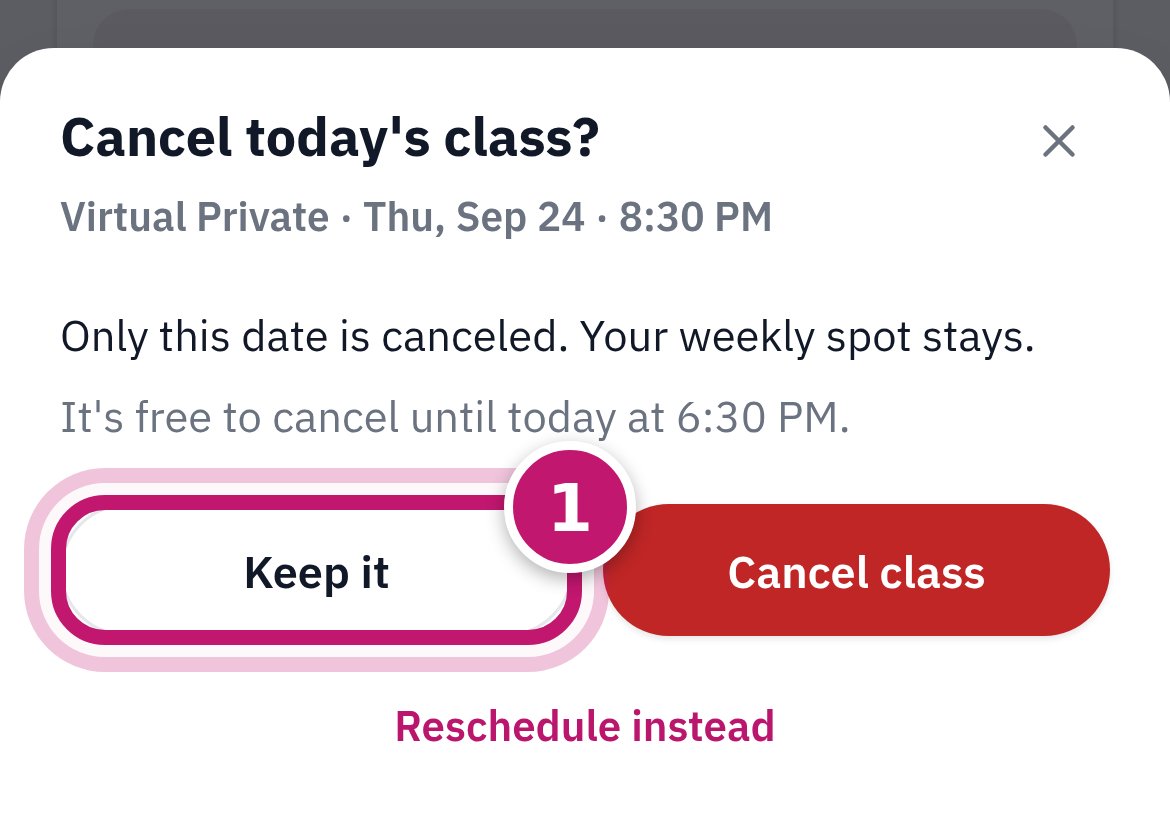
Step 4: Tapped Cancel by mistake? Tap Keep it
Nothing is canceled until you tap the red Cancel session. Your other sessions stay.
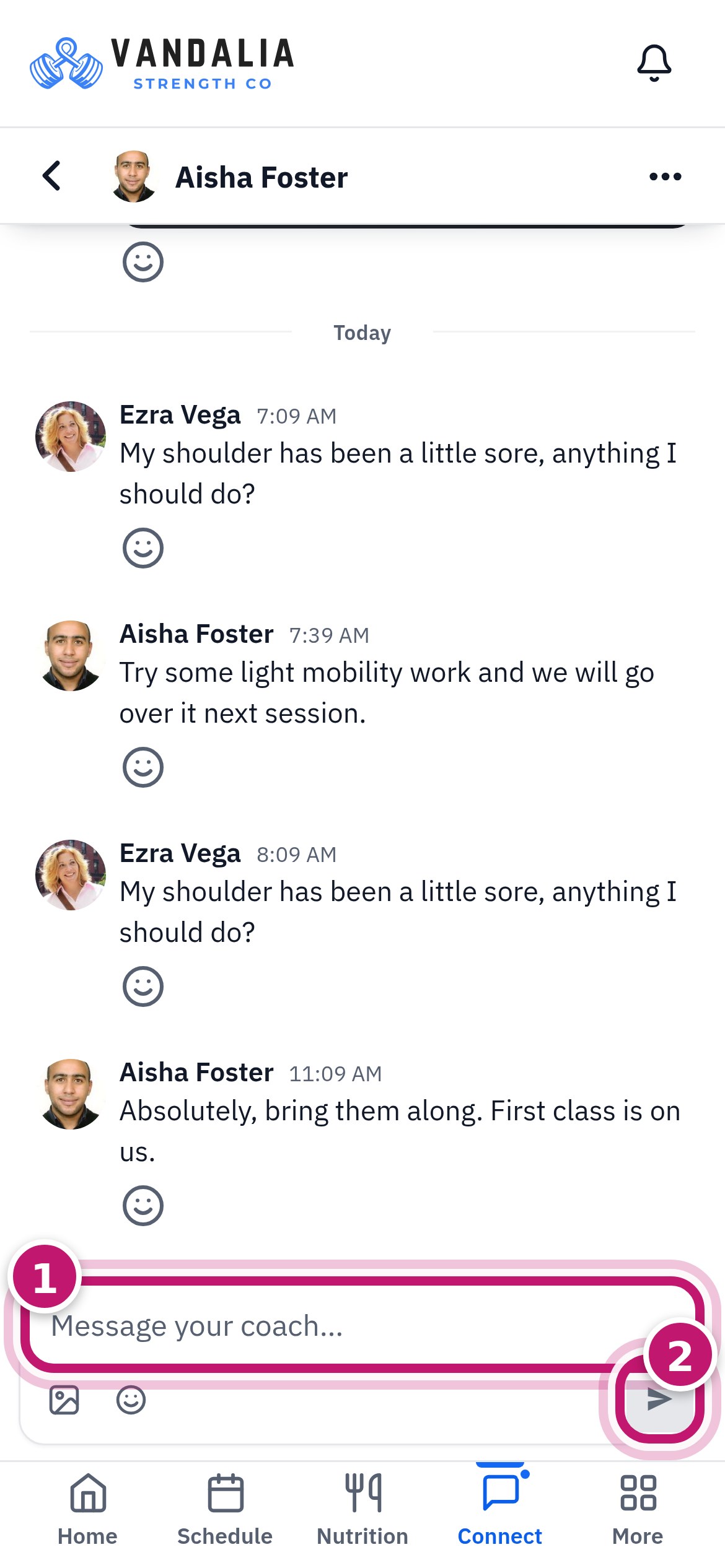
Step 5: Tap Message coach to write to your coach
Type in the box (1) and tap the arrow (2) to send.
If something goes wrong
None of these can break anything. Tap a question to open it.
I don't see Join via Zoom yet
It appears shortly before your session (Studio ME sets how early). Studio ME shows the time, for example Join via Zoom opens at 8:15 PM.
If it says Your coach is setting up the session, Join shows up there in a few minutes.
Right on time and still nothing? Close Studio ME and open it again. Then message your coach or call us.
Zoom asks me to download
The Zoom app isn't on your phone yet. Install it (it's free), go back to Studio ME and tap Join via Zoom again.
No time? On that Zoom page, tap Join from your browser.
No sound, or no camera
Can't hear your coach: turn the volume up. Tap the Zoom screen, tap Join Audio, then WiFi or Cellular Data.
Coach can't hear or see you: tap the Zoom screen. If the microphone or camera has a red line through it, tap it once.
Tapped "Don't Allow" earlier: open your phone's Settings, tap Zoom, and turn on Camera and Microphone.
I can't sign in
No code email: wait 2 minutes, then check junk or spam.
"That code is invalid or expired": tap Use a different email, type your email again, and tap Send code. Use the newest email.
Still stuck: call us. We can check which email we have for you.
How do I sign out?
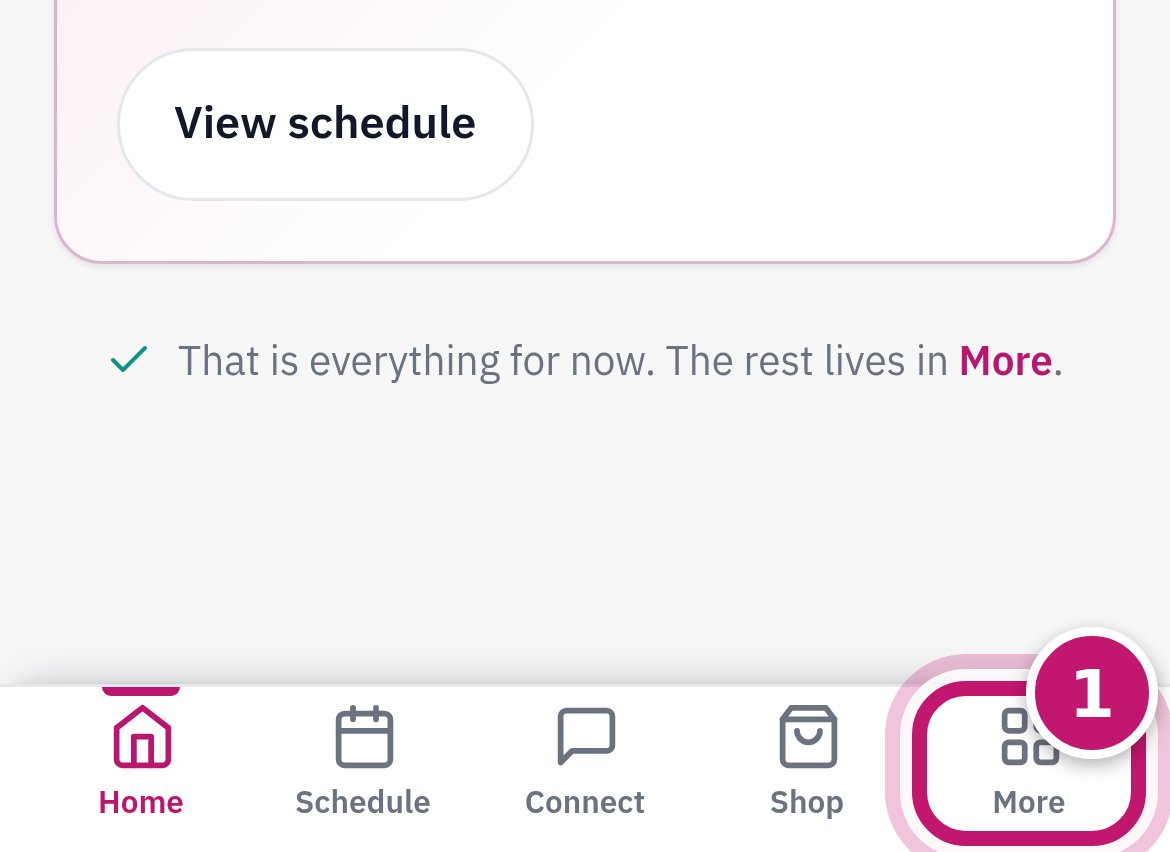
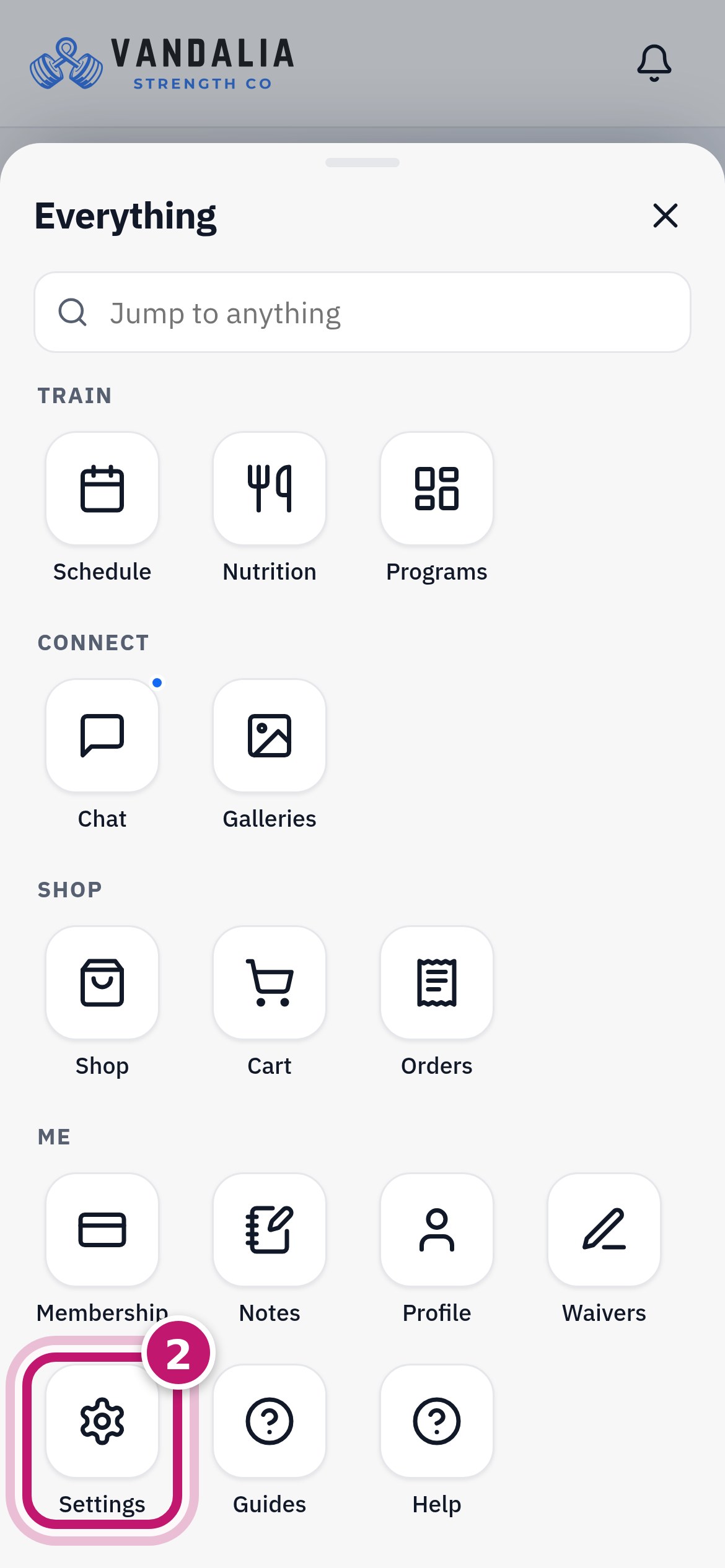
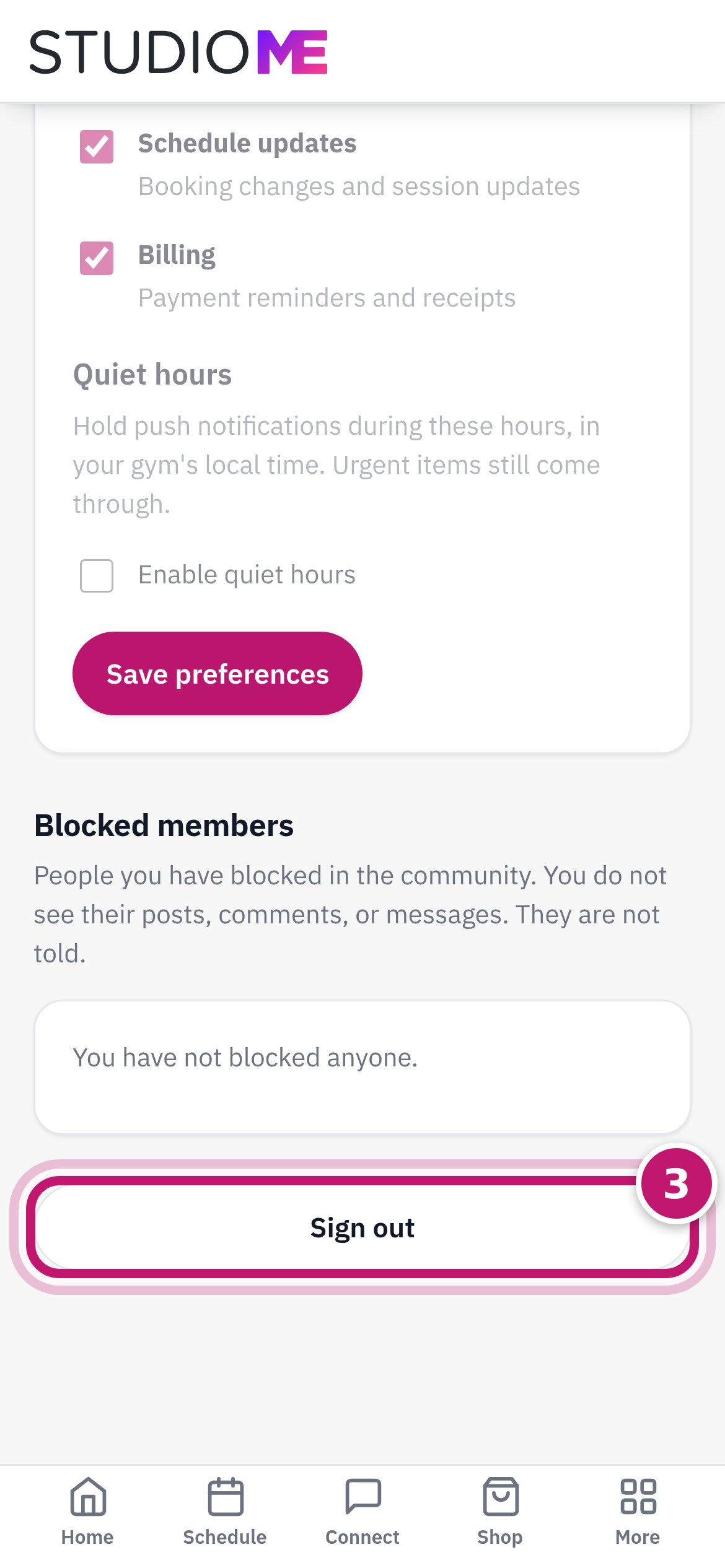
You don't need to. On a shared phone: tap More (1), then Settings (2), scroll to the bottom and tap Sign out (3).
Stuck? We're happy to help
Right before a session, calling is fastest. No question is too small.
Updated 2026-09-26