

Guide · 3 min read
Signing in to the Studio ME app
You get into the app in under a minute, on any phone.
1. Sign in with an emailed code
No password needed. Open studiomefitness.com/app on your phone.
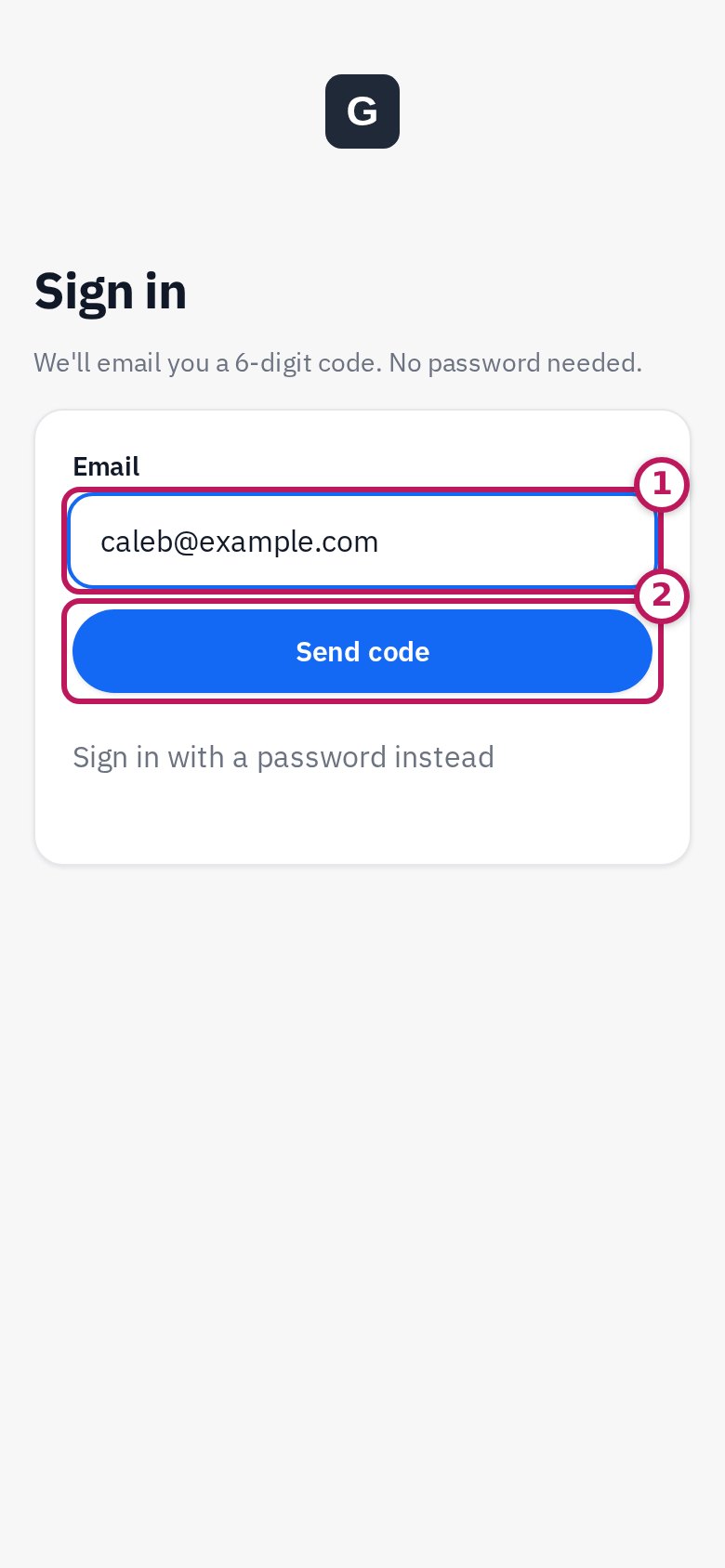
Step 1: Type your email and tap Send code
Use the email the gym has for you.
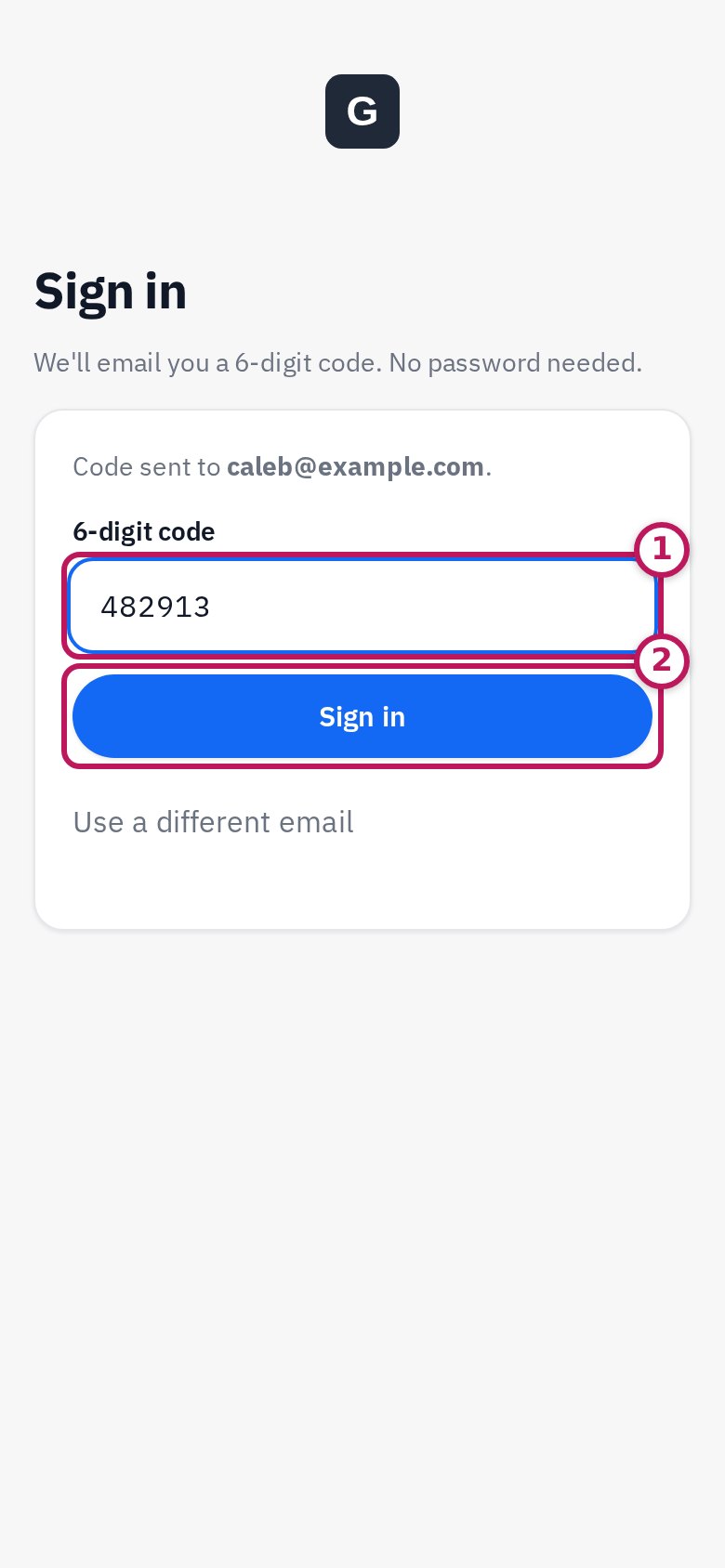
Step 2: Type the 6-digit code, then tap Sign in
The code is in your email. It works for 10 minutes.
No email with the code?
Wait a minute or two, then check your junk or spam folder. Still nothing? Tap Use a different email and check the address, or message the gym.
2. Prefer a password?
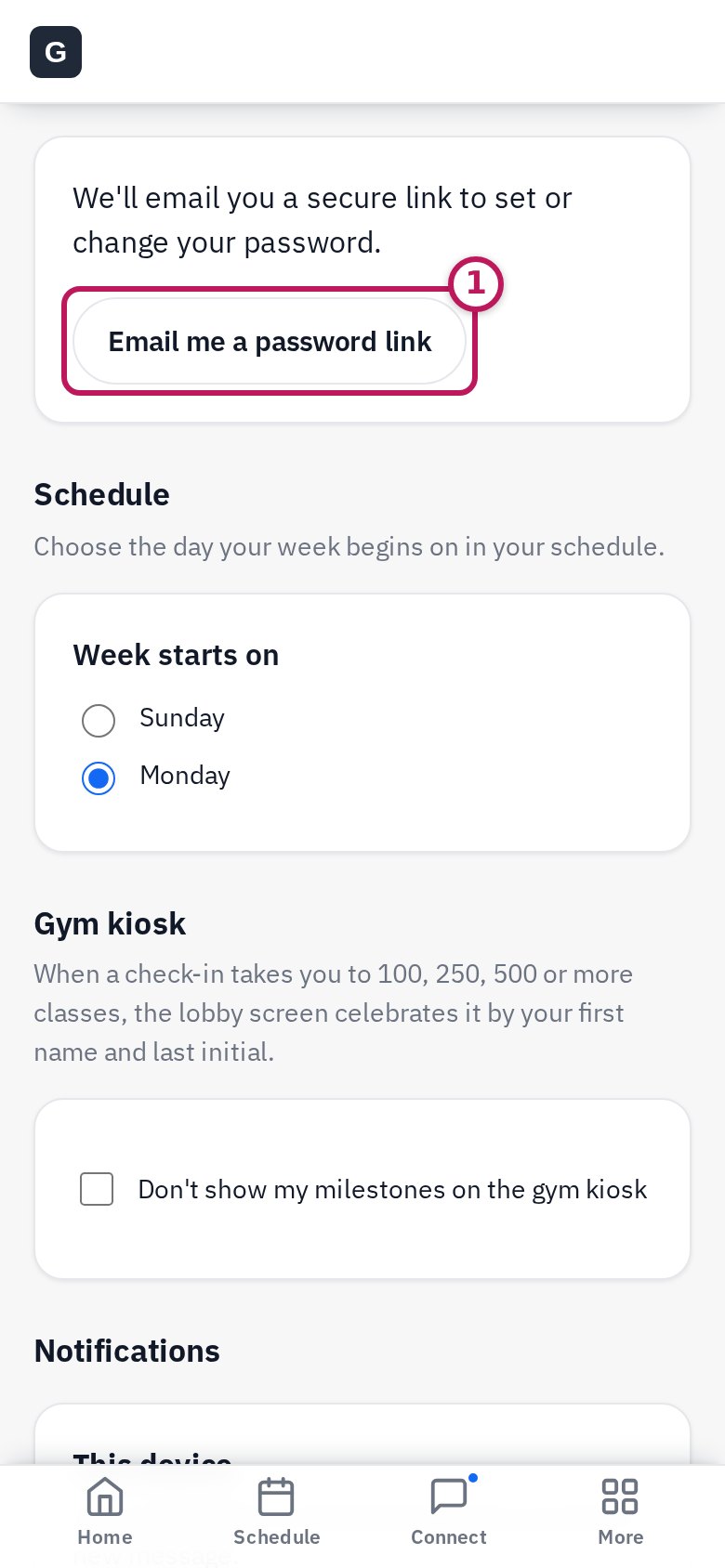
Step 1: In Settings, tap Email me a password link
We email you a link to set one. It needs at least 10 characters.
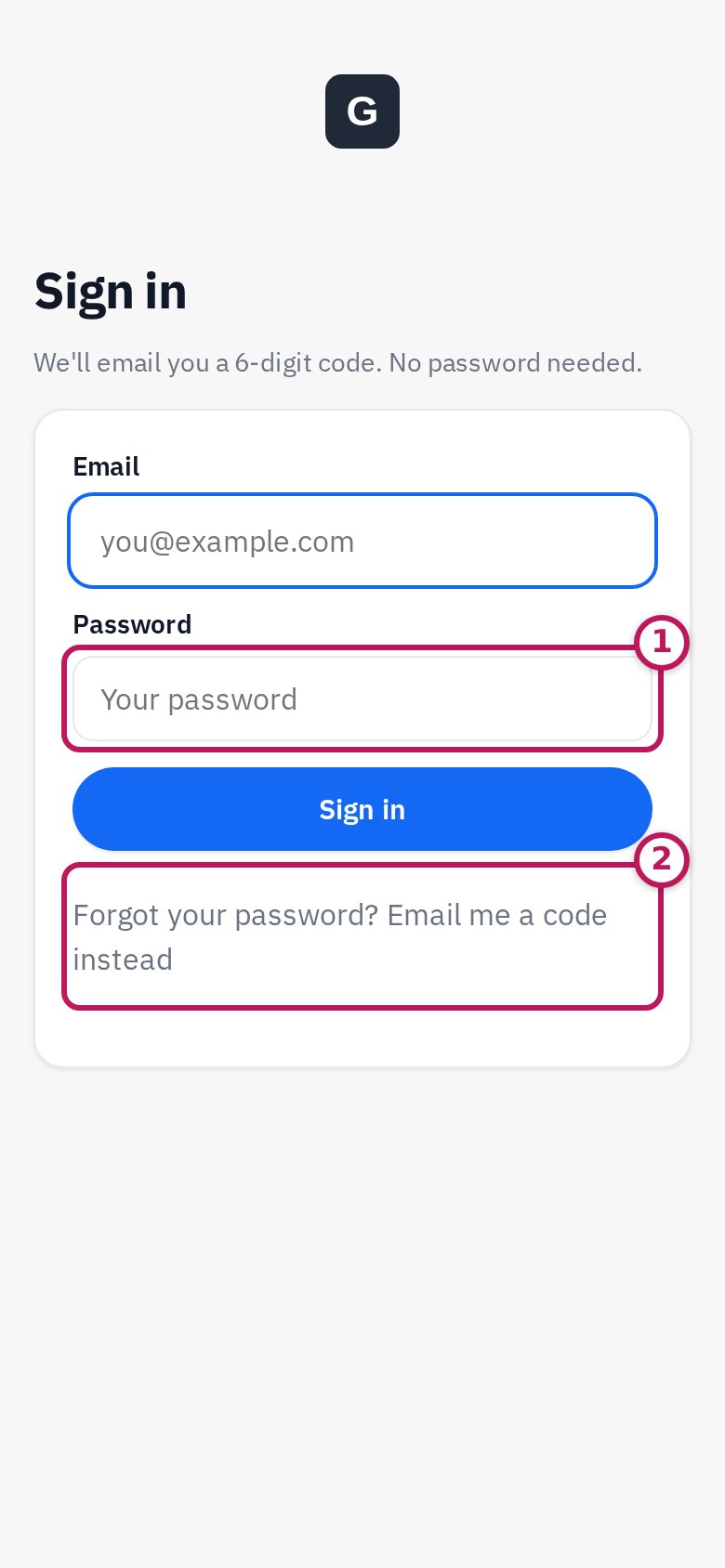
Step 2: Next time, tap Sign in with a password instead
Forgot it? Tap Forgot your password? Email me a code instead, sign in with a code, and set a new one.
3. Sign out, or use a new phone
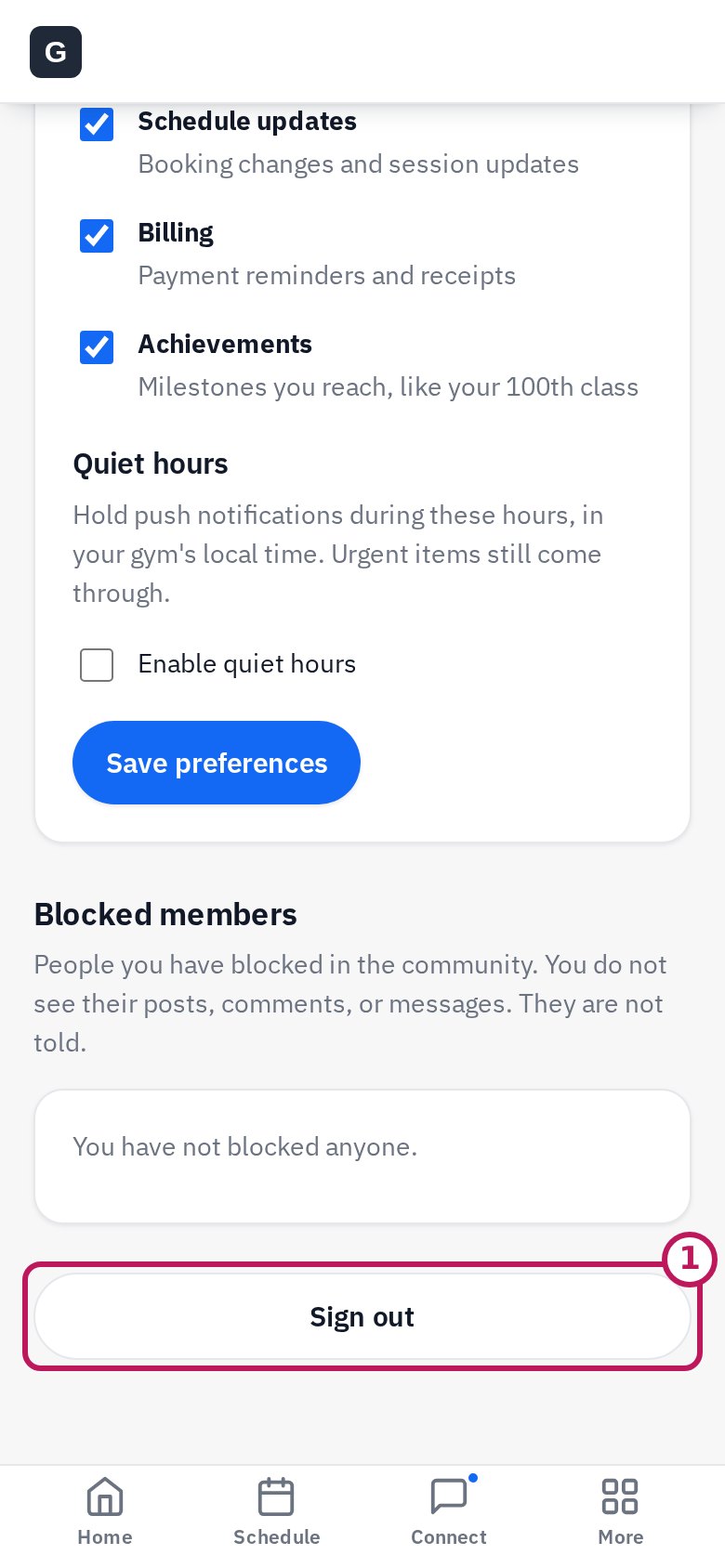
Step 1: Sign out from Settings
Scroll to the bottom of Settings and tap Sign out.
On a new phone, just sign in again with a code. Your schedule, membership and messages are all there.
Next: add the app to your Home ScreenStill stuck?
Call or email us and we'll get you in.
Updated 2026-09-25